
How to mark an item as shipped on Depop: 2026 seller’s guide
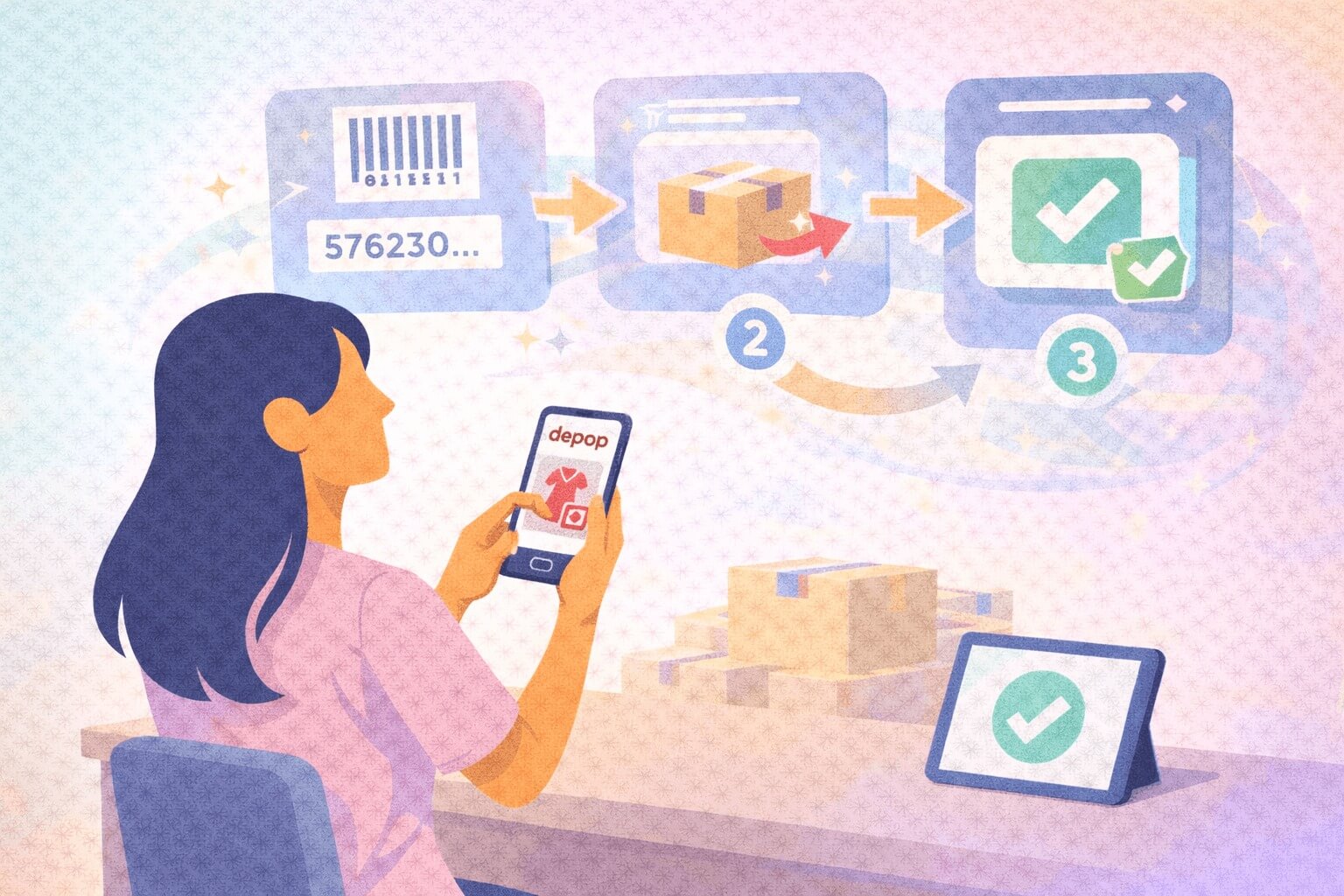
I've shipped over 500 Depop orders using both platform labels and third-party carriers. Depop shipping auto-marks when USPS scans your drop-off. For your own shipping, open the sold item, tap “mark as shipped,” add tracking number and carrier, then confirm.
Here's an easy step-by-step guide for marking an item as shipped on Depop, using both the platform’s shipping system and self-shipping.
How to mark an item as shipped on Depop
After selling an item on Depop, you mark it as shipped based on the shipping type you select.
Here’s how to mark an item as shipped when using Depop shipping or your own shipping:
If you used Depop shipping
When you select Depop shipping, the platform automatically handles tracking once USPS scans your package. Depop's in‑app label or QR code contains all the necessary data.
Follow these steps for shipping with Depop:
Step 1: Drop off your package
Take your packaged item to any USPS location with either the printed label or the QR code. Hand the clerk the code or use a self-service kiosk to scan it. USPS accepts packages at post offices, retail counters, and authorized drop-off points.
Step 2: Wait for it …
After you drop off your package, USPS scans it into their system for processing, which activates tracking on Depop. In many cases, this happens the same day, but timing can vary by location and volume.
Step 3: Status updates automatically
Once USPS scans your package, Depop automatically updates tracking, marks the item as shipped, and sends transit updates to your buyer. Depop processes your payment in accordance with its payment policy once the order is marked as delivered.
If you used your own shipping
If you arrange your own shipping, you should manually update the order status and add tracking. Following this process helps Depop and the buyer confirm that you’ve shipped, keeping you protected.
This process requires adding tracking information on the Depop app or website. Follow these steps to manually mark your item as shipped:
Step 1: Open the sold item
Navigate to your sold items by going to My Depop and tapping Sold on iOS or Sold items on Android, or by opening the Selling Hub on the website. From your list of recent sales, select the specific item you shipped. The order details page displays buyer information and shipping options.
Step 2: Mark as shipped
Scroll down on the order details page until you see the shipping status section. Choose the button or option labeled “mark as shipped.” This action opens a form where you can input your tracking details and confirm that the package left your possession.
Step 3: Enter tracking number
Type the complete tracking number exactly as it appears on your shipping receipt. Or better yet, paste the tracking number from your confirmation email to prevent typos. Errors can confuse buyers and may affect your seller protection or delay issue resolution if something goes wrong.
Always double-check each digit and letter to avoid errors that could delay payment or cause buyer confusion.
Step 4: Choose the carrier
Select your shipping carrier, USPS, UPS, FedEx, or others, from the dropdown menu. Matching the shipper to your tracking number allows Depop to properly monitor delivery status. Depop uses the carrier and tracking details to follow delivery progress and support payout processing and protection.
Step 5: Confirm shipment
Review all entered information before tapping the final confirmation button. Once confirmed, Depop notifies your buyer that their item is in transit and provides access to tracking.
Why you don’t see a mark as shipped option (and what to do about it)
Sometimes, you won’t see an option to mark an item as shipped. Don’t panic — it’s probably because of one of the following reasons:
- Depop shipping orders: Orders using Depop shipping often don't show a “mark as shipped" button because tracking and shipment status updates automatically once USPS scans the package. When USPS scans your package, Depop receives the tracking data directly from the carrier.
- Button not available: The “mark as shipped” button appears for orders where you're using your own shipping, so you can manually add tracking. If you’re using Depop shipping, you won’t see this button because it’s unnecessary.
- Carrier hasn’t scanned yet: Sometimes tracking doesn’t register immediately after you enter it. Carrier staff must physically scan packages into their systems before tracking becomes active. This initial scan can take several hours or up to a day.
- App or order issues: Technical problems occasionally hide buttons or prevent pages from loading correctly. Close and reopen the Depop app, or access your sold items on the website instead.
- Already marked shipped: If you previously marked an item as shipped and added tracking, the button will no longer appear on that order. Look for tracking information already displayed on the order details page.
- App needs an update: Outdated app versions can cause display issues with buttons and features. Visit your device’s app store to check for available Depop updates.
- Temporary UI glitch: Interface issues may occur due to connectivity issues or server latency on Depop’s end. Wait a few minutes and refresh the page or restart the app.
If you’re still not seeing the “mark as shipped” option, contact Depop support.
Where to check tracking information and status
Both sellers and buyers can check tracking information and status updates in the order details screen and related sections in the Depop app and on the website.
Seller view
- Sold items tab: Access your sold items by tapping My Depop, then Sold on iOS, or Selling Hub and Sold items on Android. Each order displays its current shipping status. Web users can find sold items by clicking their profile picture, selecting Your selling hub, and choosing Sold from the left menu.
- Order receipt page: Tap any sold item to open its detailed receipt page showing the complete order information. The shipment status appears near the top of this page. You’ll see tracking numbers, carrier details, and the most recent scan location.
- Tracking link location: The tracking number on your order receipt page functions as a clickable link that opens the carrier's tracking page. This direct connection lets you view detailed scan history and estimated delivery dates. It updates automatically as USPS or other carriers scan your package at each facility.
Buyer view
- Order status label: Buyers see shipment status on their purchases tab, which displays labels like “Awaiting shipment,” “In transit,” or “Delivered.” These labels update based on tracking information provided by sellers or captured automatically through Depop shipping.
- Tracking access: By tapping their order on the app or webpage, buyers can view full tracking details, including the carrier name and tracking number. The tracking number links directly to the carrier’s website for detailed shipment progress.
- Delivery updates: Depop typically sends push notifications when packages ship and when tracking shows delivery, and emails updates to buyers with email notifications enabled.
Common problems sellers run into, and how to solve them
Sellers occasionally encounter technical hiccups or timing issues. Here are some common shipping issues to be aware of:
- Weekend or holiday delay: USPS and other carriers don’t process packages on Sundays or federal holidays, which can delay initial tracking scans. So if you drop off a package Friday evening, the first scan might not appear until Monday morning. Plan your shipping schedule around these gaps to set accurate delivery expectations for buyers.
- Carrier sync lag: Tracking information from carriers can take several hours to sync with Depop’s system after the initial scan. The carrier’s website might show tracking updates before they appear in the Depop app. This delay is normal and typically resolves within 24 hours as systems communicate and update order statuses.
- Status delay: Your order status may show “Awaiting shipment” even after you've dropped off the package and received a receipt. This delay happens when carriers haven’t completed their first scan yet. The status updates automatically once USPS or your chosen carrier processes the package at their facility.
- Buyer app refresh needed: Tracking information often appears in the seller's view before buyers see it in their app. Buyers may need to close and reopen their Depop app or refresh their orders page to see updated tracking. This minor sync delay between seller and buyer views resolves itself as the system processes updates.
Does marking as shipped release your money?
No, marking an item as shipped will not release your money. Using valid tracking is important for seller protection and helps Depop process your payout after delivery. Here’s how to understand the basics of payout timing:
- Shipment confirmation required: Marking your item as shipped with valid tracking is the first step toward receiving payment. If you don’t ship within Depop’s required timeframe (10 business days for U.S. sellers), the order may be automatically cancelled and the buyer refunded.
Note that most sellers ship within 2 days, and if you don’t ship within 5 days, buyers can file a complaint.
- Delivery affects payout: Depop processes payouts after orders are shown as delivered, according to its current payment policy (typically 2 business days after delivery or 10 business days after the sale). Payment may include a short delay before funds hit your bank account. The delivery scan is the primary trigger for faster payouts.
- Typical payout release window: After Depop processes your payout, funds take an additional 2 to 5 days to appear in your bank account. Once Depop sends a payout, many banks take a few business days to deposit the funds, but the exact timing depends on your financial institution. Plan your cash flow expectations around standard processing times.
When to contact Depop because of delayed payment
Certain situations require support team intervention to resolve payment or tracking issues. Knowing when to reach out saves time and prevents unnecessary worry about missing funds:
- Tracking stuck: If tracking hasn’t updated for several days after the first scan, you can contact Depop support with your order details. Stuck tracking can indicate carrier issues or system problems that prevent payout processing. The support can investigate with the carrier and update the order or payout status if appropriate.
- Incorrect shipment status: Sometimes the app displays the wrong information, showing an item as unshipped even after you’ve added tracking. Take a screenshot of your tracking receipt and contact support. Incorrect statuses can cause confusion and may affect protection or payouts, so it’s worth correcting them.
- Payout not released: If Depop shows your payout as processed but the funds still haven’t arrived after a reasonable bank processing period, confirm the details with your bank, then contact Depop support. Missing payouts often result from incomplete verification or negative balance issues that support can help resolve.
Move more Depop listings with Nifty
Now that you know how to mark an item as shipped on Depop, why not list your items on other platforms like Mercari and Poshmark to increase your chances of selling? Don’t manage these listings manually. Use Nifty, a crosslisting, analytics, and automation tool that helps you stay organized, save time, and keep track of your items.
Here’s why over 10,000 sellers use Nifty:
- AI listing: Snap a pic and let Nifty's AI build a high-quality listing, with SEO-optimized titles and descriptions, and hashtags filled out for you. Plus, it's cloud-based, mobile-friendly, and easy to use.
- Crosslist now: With a couple of clicks, post your items across Poshmark, eBay, Etsy, Depop, and Mercari. No copy-paste, no multi-tab, it's all in the background. (More marketplaces coming soon!)
- Automatic delisting? Handled: When you make a sale, Nifty’s sales detection auto-delists that item from every marketplace. Say goodbye to double-selling disasters and “sorry, it’s already gone” apology messages.
- Bulk tools = no busywork: Share and relist daily without lifting a finger. Update or discount dozens of items at once. You can even schedule drafts to go live while you sleep.
- Analytics and profits are real: Track sales, fees, top performers, and slow movers in one clean dashboard, so you can actually see what’s working and what’s just dead space.
Nifty pays for itself in just a few weeks. So, what are you waiting for? Start with a 7-day free trial today.
FAQs
1. Why can’t I mark my order as shipped if using Depop shipping?
If you’re using Depop shipping, you can't mark your Depop order as shipped because the system automatically updates tracking once USPS scans your package. The “mark as shipped” button only appears when your shipping method is set to “Other” in your settings. If you selected Depop’s prepaid label, no manual action is needed.
2. How long does it take for Depop to mark an item as shipped?
If you use Depop shipping, the platform automatically marks the item as shipped once USPS scans your package. This can happen on the same day, but it may take a day or more, depending on delays. If you arrange your own shipping, the order is marked as shipped in the app once you select “mark as shipped” and enter the tracking information.
3. Do I have to add tracking if I use Depop shipping?
No, you don’t have to add tracking if you use Depop shipping. The prepaid label or QR code includes embedded tracking that activates automatically when USPS scans your package at their facility. Depop receives tracking data directly from the carrier and updates your order status without any manual input.


.png)
.png)
.png)